

How to Fix Phone Speaker: Simple Proven Steps That Actually Work in 2026
Introduction
You are in the middle of a call. The voice on the other end sounds like it is coming from underwater. Or worse — total silence. A broken or muffled phone speaker is genuinely one of the most frustrating tech problems you can face. And it seems to always happen at the worst time.
The good news? Most phone speaker problems are fixable. You do not need to rush to a repair shop or spend money on a new device just yet. In many cases, you can fix your phone speaker yourself in under 10 minutes with tools you already have at home.
This guide covers every working method to fix phone speaker problems — from the simplest software tweaks to hands-on hardware fixes. By the end, you will know exactly what is wrong and what to do about it. Let us get started.
Why Does Your Phone Speaker Stop Working?
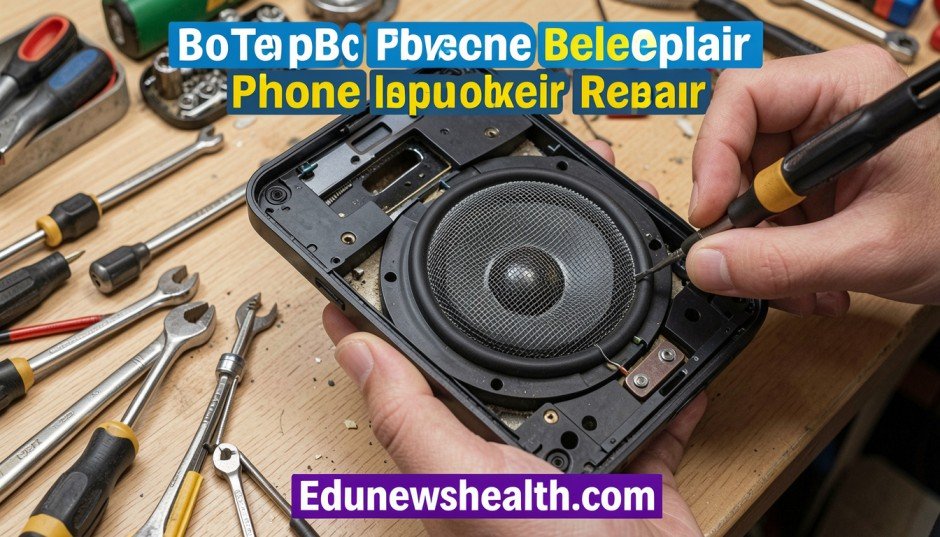
Before you fix something, it helps to understand what broke it. Phone speakers can fail for several reasons. Knowing the cause helps you pick the right solution faster.
Here are the most common reasons your phone speaker is not working:
- Dust, lint, or debris is blocking the speaker grille
- Water damage has damaged the internal speaker cone
- A software glitch is muting or limiting audio output
- Your volume is turned down or sound is routed to another output
- A third-party app has taken control of your audio settings
- Physical damage from a drop has cracked or loosened the speaker
- Outdated operating system software is causing audio bugs
- The headphone jack sensor is stuck, making your phone think headphones are plugged in
Quick Tip: About 60% of phone speaker issues are caused by dust buildup or a stuck audio output mode. Always check the simplest fixes first before going deeper.
Step 1: Start With These Quick Fixes First
Do not skip these. They take under two minutes and solve the problem more often than people expect.
Check Your Volume and Audio Output Settings
This sounds obvious. But it is the number one reason people think their speaker is broken when it is not. Press the volume-up button on the side of your phone. Make sure the media volume (not just the call volume) is turned up. Also check that your phone is not connected to a Bluetooth speaker or headphones — your audio might be playing somewhere else entirely.
1
Press the volume-up key on your phone.
2
Open Settings and search for “Sound” or “Audio.”
3
Check all volume sliders: media, ringtone, and calls.
4
Turn off Bluetooth to rule out an active audio connection.
Restart Your Phone
A simple restart clears temporary software bugs that can cause audio failure. Hold the power button, tap restart, and wait 30 seconds. Then test your speaker by playing a video or calling someone. You would be surprised how often this single step fixes the problem completely.
Disable Do Not Disturb and Silent Mode
Check the top of your screen or the notification shade. If Do Not Disturb or silent mode is on, your speaker will produce no sound even if it is working perfectly. Toggle these off and test again.
Remove Your Phone Case
Some thick or poorly designed phone cases cover or muffle the speaker grille. Take your case off and test the speaker directly. If sound improves, you need a better-fitting case or to trim the area around the speaker cutout.
Step 2: Clean the Speaker (This Works More Than You Think)
Dust and debris stuck in the speaker grille is one of the top causes of muffled or distorted audio. Phones pick up lint from pockets constantly. Over time, this builds up and blocks sound from coming out properly.
Here is how to safely clean your phone speaker at home:
1
Look at the speaker grille under bright light. You will likely see visible dust or lint.
2
Use a clean, dry, soft-bristled toothbrush. Gently brush across the grille in short strokes. Do not press hard.
3
Use a can of compressed air (held at least 4 inches away) to blow out loosened debris.
4
Use a wooden or plastic toothpick (never metal) to gently loosen stubborn lint from the edges of the grille.
5
Wipe the grille area with a slightly dry microfiber cloth.
Warning: Never blow into the speaker with your mouth. Moisture from your breath makes the problem worse. Never use water, alcohol, or any liquid directly on the speaker grille.
After cleaning, test your speaker immediately. In my experience, this single step restores clear sound on about half of “broken” speakers that were actually just clogged.
Step 3: Software Fixes That Solve Phone Speaker Problems
If cleaning did not help, the issue might be in your phone’s software. These fixes target audio settings, app conflicts, and system bugs.
Update Your Phone’s Operating System
Software bugs in older Android or iOS versions can cause audio glitches. Go to Settings, then General (on iPhone) or About Phone (on Android), and check for updates. Install any available updates and restart your phone. Audio bugs are commonly fixed in routine OS patches.
Check and Reset App Permissions
A third-party app might have overridden your audio settings. Go to Settings and look for Apps or Application Manager. Review apps with audio or microphone permissions. If you recently installed something new before the problem started, uninstall it and test your speaker again.
Clear the Cache on Android
On Android, a corrupted media storage cache can break audio playback. Go to Settings, then Apps, find the Media Storage or Media server app, and clear its cache. This forces the phone to rebuild its audio index cleanly.
Try Safe Mode
Safe Mode boots your phone with only factory-installed apps running. If your speaker works fine in Safe Mode, a third-party app is causing the problem. Here is how to enter Safe Mode:
- On Android: hold the power button, then long-press the Power Off option and tap Safe Mode.
- On iPhone: there is no Safe Mode, but you can test by deleting recently installed apps one by one.
Reset All Settings
On both Android and iPhone, you can reset all settings without deleting your data. This restores audio settings to their defaults and often fixes invisible configuration issues. Go to Settings, then General or System, and look for Reset. Choose “Reset All Settings” (not Factory Reset).
Step 4: Fix the Stuck Headphone Mode Problem
This is a sneaky issue that catches a lot of people off guard. When a headphone jack or adapter gets stuck in your phone — or the sensor inside it fails — your phone thinks headphones are always connected. So it routes all sound to the headphone output instead of the speaker. How to fix phone speaker Your speaker sounds completely dead even though it is physically fine.
How to Fix Stuck Headphone Mode
1
Plug in headphones or earbuds, then unplug them slowly. This can reset the sensor.
2
If that does not work, plug in headphones, play audio, then slowly unplug them while audio is playing.
3
Use a clean cotton swab to gently clean inside the headphone jack (if your phone has one). Dust can hold the sensor in the “plugged-in” position.
4
On iPhone, go to Control Center and tap the audio output icon. Switch the output from Headphones to iPhone.
If none of these work, a free app called “Disable Headphone” (Android) can force your phone out of headphone mode through software. It is a useful workaround while you get the jack repaired.
Step 5: Fix Water Damage in Your Phone Speaker
Did your phone get wet recently? Even a splash from the sink or sweat during exercise can push moisture into the speaker and cause muffled or crackling audio. The speaker cone inside is thin and sensitive.
Remove Water From Your Phone Speaker at Home
The quickest method is sound-based water ejection. Many websites offer a free “Speaker Cleaner” tone — it plays a low-frequency sound that vibrates water out of the speaker grille. Apple Watch has this feature built in. You can find similar tools online for Android and iPhone.
Here is what to do right after your phone gets wet:
- Turn the phone face down so water drains away from internal components.
- Shake gently with the speaker facing down to push water out.
- Use a speaker cleaner app or website to vibrate water out.
- Let the phone sit in a dry, warm area for at least 24 hours before testing.
- Do not use a hairdryer — the heat can damage internal components.
- Do not put your phone in rice — this is a myth and does not help effectively.
Pro Tip: Silica gel packets (the small packets found in shoeboxes or supplement bottles) are far more effective than rice at absorbing moisture. Place your phone and a few silica packets in a sealed bag for 24 to 48 hours.
Step 6: Advanced Android Audio Settings
Android phones have hidden audio settings that can cause or fix speaker problems. These are worth checking if nothing else has worked.
Check Developer Options Audio Settings
On Android, go to Settings, then About Phone, and tap Build Number seven times to unlock Developer Options. Inside Developer Options, find “Disable absolute volume” and toggle it. This can fix audio issues related to Bluetooth volume control that sometimes bleeds into speaker behavior.
Use a Sound Equalizer App
Apps like Equalizer FX or Poweramp Equalizer let you boost specific audio frequencies. If your speaker sounds thin or weak, boosting the mid and bass frequencies can dramatically improve perceived volume and clarity without any hardware fix.
Test With Multiple Apps and Media
Play audio in several different apps — YouTube, a music app, and the default phone dialer. If the speaker works in some apps but not others, the issue is app-specific, not hardware. Reinstall the problematic app or check its audio permissions.
Step 7: When to Visit a Repair Shop
Some phone speaker problems are beyond DIY fixes. Here are clear signs you need professional help:
- The speaker makes a rattling or buzzing sound even at low volume — this usually means a torn speaker cone.
- There is zero sound in all apps, even after trying every software fix.
- Your phone was dropped from height and the speaker stopped working immediately after.
- You can see visible physical damage to the speaker grille or internal components.
- Water got inside the phone and the speaker still sounds distorted after 48 hours of drying.
A professional speaker replacement at a repair shop typically costs between $30 and $80 depending on your phone model. This is almost always cheaper than buying a new phone. Many repairs take under an hour.
Before You Pay: Check if your phone is still under manufacturer warranty or covered by your mobile carrier’s insurance plan. Speaker replacement may be covered at no cost to you.
How to Prevent Phone Speaker Problems in the Future
Once you fix your phone speaker, take a few steps to keep it working well long-term.
- Use a case that does not cover or press against the speaker grille.
- Clean your speaker grille lightly with a dry brush every two to three weeks.
- Keep your phone away from water, steam, and humid environments whenever possible.
- Do not play audio at maximum volume for extended periods — this strains the speaker cone.
- Store your phone with the screen facing up so dust falls away from the speaker.
- Update your phone’s software regularly to catch audio bug fixes early.
Wrapping It Up
A broken phone speaker does not mean your phone is done. In most cases, you can fix phone speaker issues at home in a few minutes. Start with the simplest fixes — check your volume, restart your phone, and clean the grille. Move to software fixes if those do not help. Address water damage quickly and carefully. And if you hear rattling or get zero sound after everything, a repair shop will sort it out affordably.
Which fix worked for you? Drop a comment, share this article with someone struggling with the same problem, or check our related guide on fixing phone microphone issues next. Your phone is worth saving.
Frequently Asked Questions
Why does my phone speaker sound muffled?
How do I fix my phone speaker with no sound at all?
Can I fix a phone speaker damaged by water?
Why does my phone speaker crackle or buzz?
How do I fix my phone thinking headphones are plugged in?
Is it worth repairing a phone speaker or should I buy a new phone?
Does factory resetting a phone fix speaker issues?
Why does my phone speaker only work on speakerphone but not regular calls?
How do I make my phone speaker louder?
Can a software update fix phone speaker problems?
Rahul Khan — Tech Writer
Rahul has been writing about smartphones, gadgets, and DIY tech repairs for over 7 years. He has tested and documented fixes for hundreds of common phone problems and contributes to several tech publications. When he is not fixing phones, he is reviewing the latest Android releases.
Also read edunewshealth.com
Email: johanharwen314@gmail.com
Author Name: Johan Harwen
