
Windows 10 Media Creation Tool: The Only Guide You Need in 2026
Introduction
If you have ever tried to reinstall Windows or upgrade your PC and felt completely lost, you are not alone. Most people hit a wall the moment something goes wrong with their operating system. That is exactly where the Windows 10 Media Creation Tool steps in to save the day.
This free official tool from Microsoft lets you upgrade your current Windows version, download a fresh copy of Windows 10, or create a bootable USB drive or DVD. It sounds technical, but it is honestly much simpler than it looks.
In this guide, you will learn everything about the Windows 10 Media Creation Tool. You will find out how to download it, how to use it correctly, what mistakes to avoid, and how to troubleshoot common errors. Whether you are a first-timer or just need a quick refresher, this article has you covered from start to finish
What Is the Windows 10 Media Creation Tool?
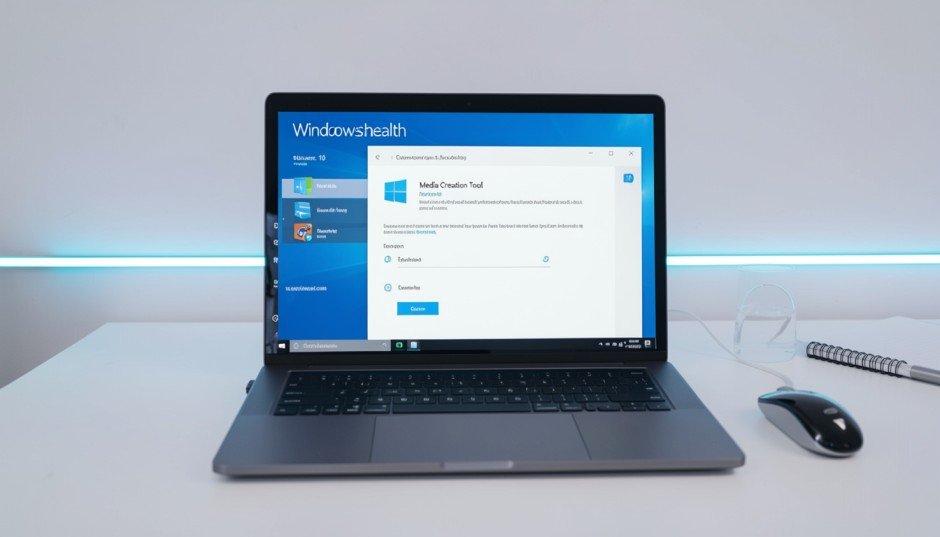
The Windows 10 Media Creation Tool is a free utility developed by Microsoft. It helps you perform two main tasks. First, it upgrades your existing Windows installation to the latest version of Windows 10. Second, it creates installation media so you can install Windows 10 on another PC.
Microsoft released this tool to make the upgrade and reinstallation process accessible to everyone. You do not need to be a tech expert to use it. The interface is clean, the steps are guided, and the whole process is mostly automated.
Why Does It Matter?
Think about this scenario. Your PC slows down, files get corrupted, or Windows simply stops working. Without a recovery option, you are stuck. The Windows 10 Media Creation Tool gives you a reliable way out. It downloads the latest Windows 10 image directly from Microsoft, so you always get a clean and verified copy.
According to Microsoft’s support documentation, this tool supports both 32-bit and 64-bit versions of Windows 10. It works on PCs running Windows 7, Windows 8.1, or Windows 10 itself.
What You Need Before You Start
Before downloading the tool, make sure you have everything ready. Missing one item can delay the whole process.
Hardware Requirements:
- A PC running Windows 7 SP1 or later
- At least 4 GB of free storage on your USB drive (8 GB recommended)
- A stable internet connection
- At least 1 GHz processor speed
- Minimum 1 GB RAM for 32-bit or 2 GB RAM for 64-bit
What You Should Do First:
- Back up all your important files to an external drive or cloud storage
- Make sure your PC is plugged into a power source
- Close all running applications before starting
- Write down your Windows product key, just in case
I always recommend creating a backup before any major system operation. It takes 20 minutes and can save you hours of regret later.
How to Download the Windows 10 Media Creation Tool
Downloading the tool is straightforward. Follow these steps carefully.
- Open your browser and go to Microsoft’s official Windows 10 download page at microsoft.com/en-us/software-download/windows10
- Click the button that says Download tool now
- Save the file named MediaCreationTool.exe to your desktop or Downloads folder
- Do not run it from a shared or network drive
The file size is around 20 MB. The download completes in seconds on most connections. Always download from the official Microsoft website. Avoid third-party sites that claim to offer the same tool. They often bundle unwanted software or outdated versions.
How to Use the Windows 10 Media Creation Tool Step by Step
Once you have the tool downloaded, the real process begins. There are two main paths you can take. You can upgrade your current PC, or you can create installation media for another device.
Option 1: Upgrade Your Current PC
This option replaces or refreshes your existing Windows 10 installation. It keeps your files and applications intact by default.
Step 1: Double-click MediaCreationTool.exe to launch it. Allow it to run as an administrator when prompted.
Step 2: Read and accept the license terms. The tool will prepare for a few moments.
Step 3: On the next screen, select Upgrade this PC now. Click Next.
Step 4: The tool downloads Windows 10. This step takes the most time. Expect anywhere from 20 minutes to over an hour depending on your internet speed.
Step 5: Once the download finishes, the tool verifies the download and prepares for installation.
Step 6: Choose whether you want to Keep personal files and apps, Keep personal files only, or Nothing. The first option is the safest for most users.
Step 7: Click Install. Your PC will restart a few times. Do not turn it off during this process.
After the upgrade, you land on a fresh, updated version of Windows 10 with your files intact.
Option 2: Create Installation Media for Another PC
This option is perfect when you want to install Windows 10 on a different device. You will need a USB drive with at least 8 GB of space.
Step 1: Launch the tool and accept the license terms.
Step 2: Select Create installation media (USB flash drive, DVD, or ISO file) for another PC. Click Next.
Step 3: Choose your language, edition, and architecture. If you are unsure, leave these on the recommended settings. The tool auto-detects the best options.
Step 4: Choose your media type. Select USB flash drive if you want a bootable USB. Select ISO file if you want to burn a DVD later.
Step 5: Plug in your USB drive. Select it from the list and click Next.
Step 6: The tool downloads Windows 10 and writes it directly to your USB drive. This takes 30 minutes to an hour on average.
Step 7: Once complete, your USB drive is ready to use as a bootable Windows 10 installer.
How to Boot from Your USB Drive
Creating the media is only half the job. You also need to know how to use that USB drive to install Windows.
Here is what to do:
- Plug the bootable USB into the target PC
- Restart the PC and press the boot key immediately (usually F2, F10, F12, or Delete depending on your PC brand)
- Enter the BIOS or UEFI settings and set the USB drive as the primary boot device
- Save and exit. The PC will restart and boot from the USB
- Follow the on-screen Windows 10 installation wizard
If you are unsure which key opens the BIOS on your PC, a quick search with your model number will give you the answer instantly.
How to Use the ISO File Option
Some users prefer to download Windows 10 as an ISO file. This gives you more flexibility. You can mount it virtually or burn it to a DVD.
Mounting the ISO (Windows 10 or 11):
- Right-click the ISO file
- Select Mount
- Windows treats it like a DVD drive. Open it and run setup.exe
Burning to DVD:
- Right-click the ISO file
- Select Burn disc image
- Insert a blank DVD and follow the prompts
The ISO method is especially useful if you manage multiple PCs. You download once and use it as many times as you need
Common Errors and How to Fix Them
Even with a smooth tool like this, things can go wrong. Here are the most common errors and their fixes.
Error: “Something Happened” Message
This vague error frustrates many users. The most common causes include:
- Corrupted download
- Antivirus blocking the tool
- Insufficient disk space
Fix: Temporarily disable your antivirus, free up at least 10 GB of disk space, and redownload the tool fresh from Microsoft’s website.
Error: USB Drive Not Detected
If the tool does not see your USB drive:
- Unplug and replug the drive
- Try a different USB port
- Make sure the drive is not write-protected
- Format the drive to FAT32 before using the tool
Error: Download Keeps Failing
A failing download usually points to a network issue or server timeout.
Fix: Use a wired Ethernet connection instead of Wi-Fi. Restart your router and try again. If the problem persists, download the ISO file instead and use it offline.
Error: “Windows Cannot Be Installed on This Drive”
This happens during installation and usually means your partition style does not match the boot mode.
Fix: Check whether your PC uses BIOS (MBR) or UEFI (GPT). In most cases, converting the disk partition style using the diskpart tool in Command Prompt resolves this.
Tips to Get the Best Results
A few smart habits make the whole process smoother.
- Always use a USB 3.0 drive for faster write speeds
- Run the tool on a wired internet connection
- Do not use your PC heavily during the download phase
- Keep your device plugged into power throughout the process
- If you plan to install on multiple PCs, download the ISO and keep it stored securely
One tip I personally follow: after creating the bootable USB, I always test it on the target PC before the actual installation day. This saves a lot of stress.
Frequently Asked Questions
1. Is the Windows 10 Media Creation Tool free?
Yes, it is completely free. Microsoft provides it as an official download at no cost to any Windows user.
2. Does using this tool delete my files?
It depends on the option you choose. The upgrade option lets you keep your personal files. The clean installation option erases everything. Always back up first.
3. Can I use the tool on Windows 7 or Windows 8.1?
Yes, you can. The tool works on Windows 7 SP1 and Windows 8.1 as a starting point for upgrading to Windows 10.
4. How long does the process take?
It varies. Downloading Windows 10 takes 30 minutes to 2 hours depending on your internet speed. Writing to a USB drive adds another 20 to 30 minutes.
5. Do I need a product key to use the tool?
If you already have a valid Windows 10 license on your PC, you do not need to enter a key. The tool activates Windows automatically during installation.
6. What size USB drive do I need?
You need a minimum of 8 GB. However, a 16 GB or larger drive is recommended for extra safety and compatibility.
7. Can I use the same USB drive to install Windows on multiple PCs?
Yes, the bootable USB can be used on multiple PCs. However, each PC needs its own valid Windows 10 license.
8. Will the tool download the latest version of Windows 10?
Yes, it always downloads the most recent version available from Microsoft’s servers at the time of use.
9. Can I use this tool to downgrade from Windows 11 to Windows 10?
Yes, you can use the installation media to install Windows 10 on a PC currently running Windows 11. This counts as a clean installation.
10. What happens if my internet disconnects during the download?
The tool may resume from where it stopped or restart the download. If the connection drops repeatedly, download the ISO manually from Microsoft’s website and proceed from there
Conclusion
The Windows 10 Media Creation Tool is one of the most useful free utilities Microsoft has ever released. It takes what used to be a complicated and expensive process and makes it accessible to anyone with a basic PC and an internet connection.
You now know how to download it, how to upgrade your current PC, how to create bootable USB media, and how to fix the most common errors. You are ready to handle almost any Windows installation scenario on your own.
If you found this guide helpful, share it with someone who is struggling with their PC setup. And if you have a question or ran into an unusual error, drop it in the comments below. I read every one and will do my best to help.
Your next step? Download the tool, grab a spare USB drive, and create your backup media today. Future you will thank you for it
Author Bio: Hamza Raza is a tech writer and Windows enthusiast with over seven years of experience simplifying complex software guides for everyday users. He writes practical tutorials focused on Microsoft products, PC optimization, and digital troubleshooting. When he is not writing, he is testing new tools so you do not have to.
Also read edunewshealth.com
Email: johanharwen314@gmail.com
Author Name: Johan Harwen